
HOW TO PLACE LINK ON HOMESCREEN
Placing a web link on your home screen for easy/instant access is simple — after you’ve done it once!
These instruction are for an iPhone
Likely the procedure is almost identical for Android phones.
STEP 1
Go to the 5G Maui main page on your phone
See URL in red in the screenshot below
In this example we are using Apple’s Safari browser
STEP 2
At the bottom of the browser screen click the SEND icon
See the icon in the red circle at the bottom of the screenshot below
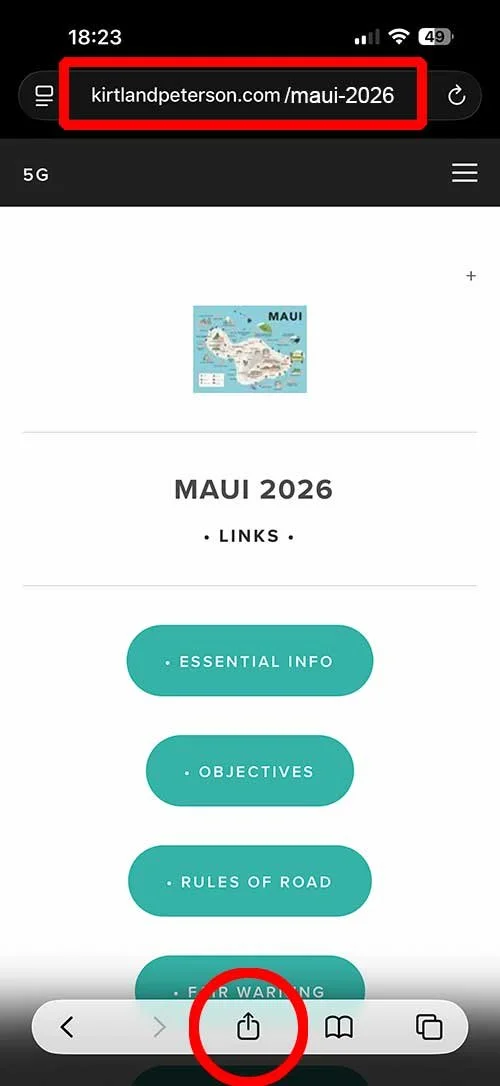
• Note URL link at top and SEND icon at the bottom
STEP 3
Among the SEND TO options find VIEW MORE
See red circle below
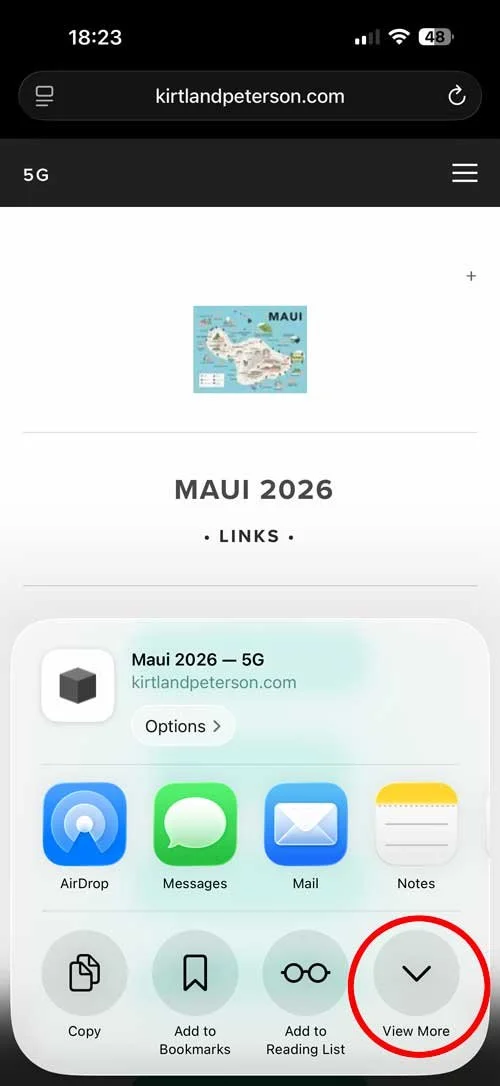
• Note the VIEW MORE option
STEP 4
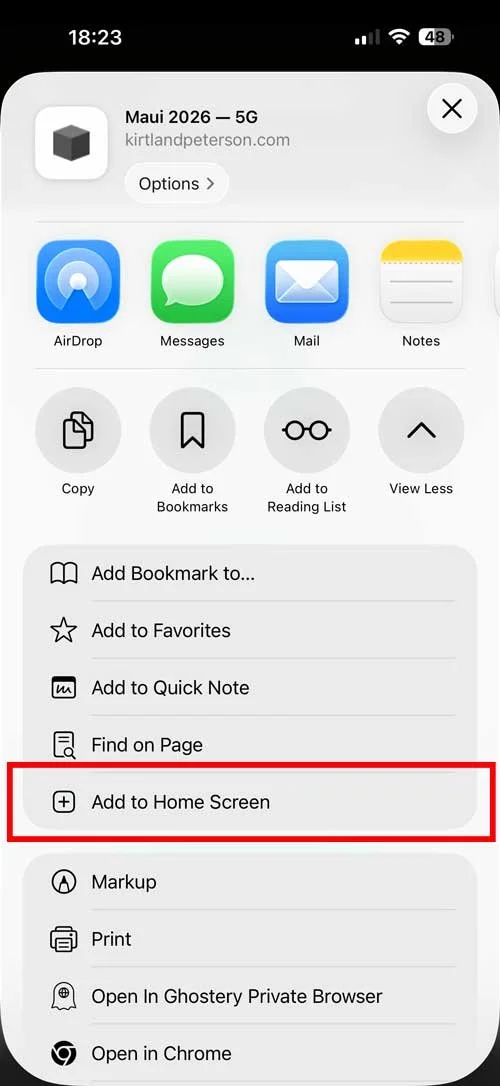
One of your View More option is ADD TO HOME SCREEN
See red rectangle below
STEP 5
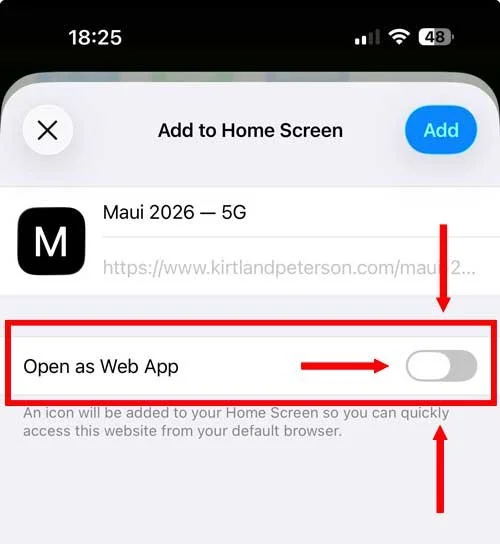
You can name the link that will be placed on your home screen
Turn OPEN AS A WEB APP — OFF
See red rectangle and red arrows below
I have saved two links to my home screen, one with the web app on & the other with it off — just to be sure I have full functionality
I’m not really sure what the web app does, but I’ve noticed sometime it’s not easy to “go back” on one of these links, and I attribute that to my link becoming an “app” — but who knows!
STEP 6
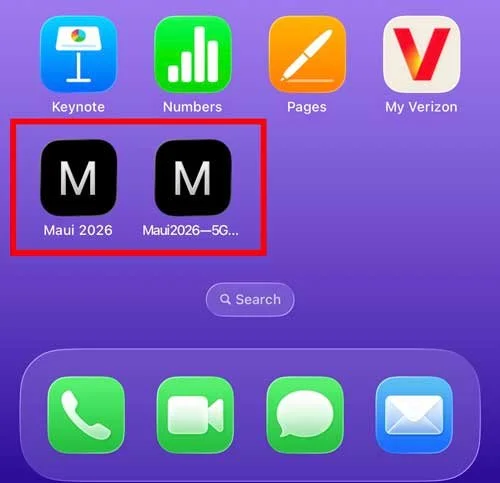
Check that your link has appeared on your home screen
I have two: one as an app (see Step 5, above) and one not — just to be sure!
Test your home screen link
It should take you to kirtlandpeterson.com/maui-2026
YOUR RESULTS MAY DIFFER
As with all things tech, the simplest, clearest instructions don’t seem to fit everyone’s situation — I don’t see that on my phone!
If this procedure doesn’t work, “click around” for a similar set of steps — that almost identical process should be there somewhere!
Remember: you can always bookmark kirtlandpeterson.com/maui-2026 on your laptop, desktop, tablet or phone